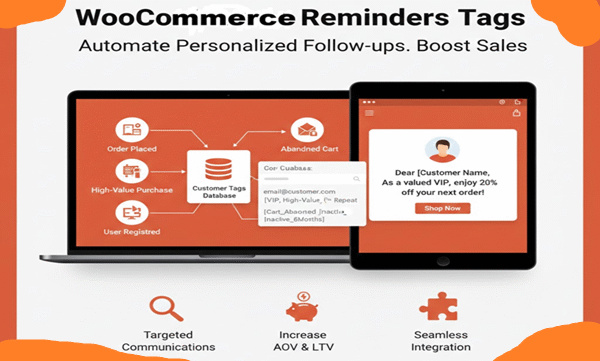
Introducing WooCommerce Reminders Tags: Revolutionize Your E-Commerce Customer Engagement
In the fast-paced world of online retail, staying connected with your customers is key to building loyalty, driving repeat sales, and maximizing revenue. WooCommerce, the powerhouse plugin that turns WordPress into a fully functional e-commerce platform, already offers robust tools for managing stores. But what if you could automate personalized reminders based on specific customer behaviors and order events? Enter WooCommerce Reminders Tags, a cutting-edge WordPress plugin designed to enhance your customer relationship management by intelligently tagging users in a dedicated reminders database. This plugin empowers store owners to trigger targeted communications, promotions, and follow-ups, all while seamlessly integrating with your existing WooCommerce setup.
Developed with precision and efficiency in mind, WooCommerce Reminders Tags adds a layer of sophistication to your store’s backend. It creates and maintains a custom database table, where it stores customer emails, usernames, and a JSON array of tags corresponding to 18 distinct WooCommerce scenarios. These tags act as markers for various customer interactions, from high-value purchases to abandoned carts, allowing you to segment your audience effortlessly. Unlike generic reminder systems, this plugin consolidates multiple tags into a single row per email and description, reducing database clutter and improving query performance. Whether you’re a small boutique shop or a large-scale online retailer, this plugin transforms raw data into actionable insights, helping you nurture leads and convert one-time buyers into lifelong advocates.
At its core, WooCommerce Reminders Tags is about automation and personalization. Imagine sending a tailored email to a VIP customer who has spent over $10,000 in your store, or reminding an inactive shopper about their favorite products after six months of silence. The plugin hooks into WooCommerce’s core events—such as order completions, user registrations, and stock changes—to dynamically assign tags. This not only saves time but also ensures that your marketing efforts are relevant and timely. With a single customizable description field applied across all scenarios, you maintain consistency in your reminders while allowing for flexible tag prefixes. The result? A streamlined system that boosts customer retention rates, increases average order values, and ultimately grows your bottom line.
Key Benefits for Your WooCommerce Store
Why choose WooCommerce Reminders Tags over other customer engagement tools? For starters, it’s lightweight and non-intrusive, with no bloatware or unnecessary dependencies. It leverages WordPress’s built-in cron system for scheduled checks, ensuring that tasks like detecting abandoned carts or inactive customers run smoothly in the background without impacting site performance. The plugin’s JSON-based tag storage is future-proof, allowing easy expansion or integration with other systems. Plus, it’s fully compatible with WooCommerce’s ecosystem, supporting both registered users and guest checkouts.
One of the standout benefits is improved customer segmentation. Traditional email marketing often relies on broad lists, but with this plugin, you can create hyper-targeted campaigns. For instance, tags like “VIP” or “Geolocation_Taiwan” enable you to filter customers by spending habits or location, making your promotions more effective. Studies show that personalized emails have open rates up to 29% higher than generic ones, and click-through rates can increase by 41%. By automating tag assignment, WooCommerce Reminders Tags puts this power in your hands without requiring manual intervention.
Security and reliability are also paramount. The plugin prevents direct file access, uses prepared SQL statements to avoid vulnerabilities, and includes error logging for troubleshooting. Upon activation, it automatically creates or migrates the reminders table, converting any legacy comma-separated tags to JSON format for better data integrity. This means you can hit the ground running, with minimal setup required.
Exploring the 18 Powerful Scenarios
WooCommerce Reminders Tags shines through its comprehensive coverage of 18 scenarios, each triggered by specific WooCommerce hooks. Let’s dive into each one to see how they work and the value they bring.
- VIP Customer (Total Spent > Threshold): This scenario identifies high-spenders. Set a custom threshold (default: $10,000) in the admin settings. When an order completes and pushes a customer’s total spend over the limit, a tag like “VIP” is added. Use this to offer exclusive perks, such as early access to sales.
- Loyalty Customer (Multiple Orders): For users with three or more completed orders, a “Loyalty” tag is applied upon order completion. Reward repeat buyers with loyalty points or personalized discounts to encourage ongoing engagement.
- Welcome Letter (New Customer): Triggered on user registration, this adds a “Welcome” tag for new sign-ups. It’s perfect for onboarding sequences, introducing your brand, and guiding first-time users through your store.
- Abandoned Cart: Running hourly via cron, this checks WooCommerce sessions for carts left idle beyond a configurable timeout (default: 3600 seconds). Tags like “AbandonedCart_123” (where 123 is the product ID) are added, including variations. Recover lost sales by sending reminder emails with cart contents.
- High-Value Order: When an order totals $500 or more and completes, a “HighValue” tag is assigned. This helps in upselling complementary products or providing premium support to big-ticket buyers.
- Repeat Purchase: Similar to loyalty but for any second or subsequent order, adding a “RepeatPurchase” tag. It’s ideal for nurturing habits and suggesting subscription options.
- Inactive Customer: A daily cron scans customers whose last order was over six months ago, tagging them as “Inactive”. Re-engage them with win-back campaigns featuring special offers.
- Specific Product Category Purchase: On order completion, it scans items and adds tags based on category names (e.g., “Electronics” becomes “Electronics”). This enables category-specific follow-ups, like accessory recommendations.
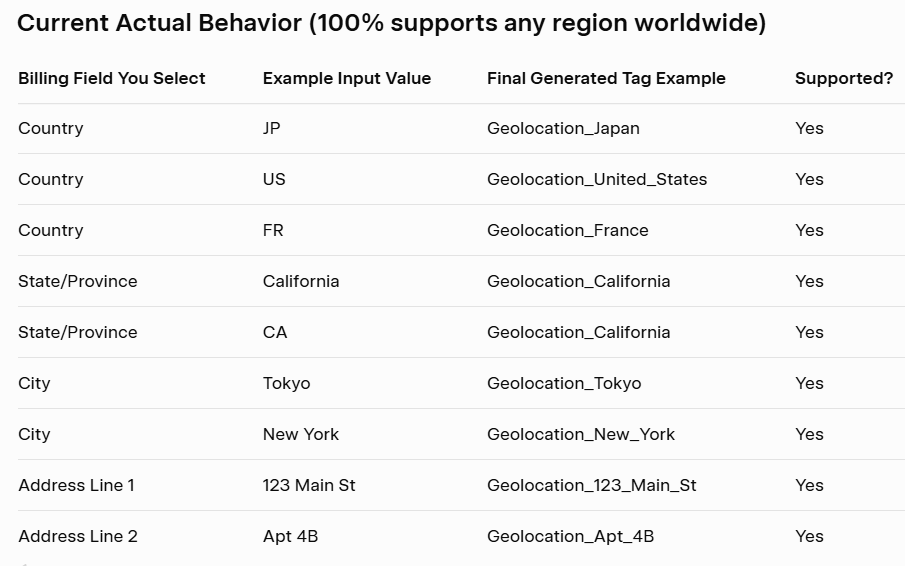
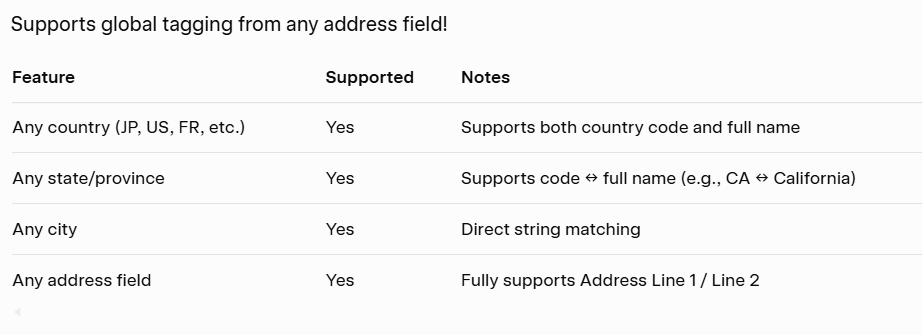
- Geolocation: Based on billing fields (e.g., country, state), it tags customers matching a set value (default: “TW” for Taiwan). Tags like “Geolocation_Taiwan” support localized marketing, such as region-specific promotions.
- First Purchase: For a customer’s very first completed order, a “FirstPurchase” tag is added. Follow up with thank-you notes or tutorials to build trust early.
- Review Request: Triggered on order completion, this adds a “ReviewRequest” tag. Automate review prompts to gather feedback and boost social proof.
- Out of Stock Notification: When a product or variation goes out of stock, it tags all past buyers of that item as “OutOfStock”. Notify them when stock returns, turning potential frustration into sales opportunities.
- Coupon Used: If an order includes coupons and completes, a “CouponUsed” tag is applied. Analyze coupon effectiveness and offer advanced deals to repeat users.
- Order Refunded: On refund status change, adds an “OrderRefunded” tag. Use this for apology campaigns or to retain dissatisfied customers.
- Active Subscription: When a WooCommerce Subscription activates, a “SubscriptionActive” tag is added. Maintain engagement with subscribers through renewal reminders or exclusive content.
- Cross-Sell Opportunity: Scans completed orders for specific categories (e.g., electronics) and adds a “CrossSell” tag. Promote related products to increase basket sizes.
- Customer Birthday: Daily cron checks user meta for birthdays matching the current date, adding tags like “Birthday_YYYY-MM-DD”. Send celebratory discounts to personalize the experience.
- Specific SKU Purchase: Configurable with comma-separated SKUs, this tags buyers of those items (e.g., “SKU_123”) on order completion. Great for product-specific follow-ups or recalls.
Each scenario is toggleable via checkboxes in the admin panel, with customizable tag prefixes for branding consistency. For example, in the geolocation scenario, you can select billing fields like country or city and set values for precise targeting. The abandoned cart handler even records add-to-cart times and updates them during checkout for accurate timeout detection.
Easy Installation and Customization
Getting started with WooCommerce Reminders Tags is straightforward. Simply upload the plugin file to your WordPress site’s plugins directory, activate it, and navigate to the new “Woo Reminders Tags” menu in the admin dashboard. The activation hook ensures the database table is created or updated, migrating any existing data seamlessly.
The settings page is intuitive, featuring a single “Description” field that applies universally—keeping things simple yet powerful. For each scenario, enable it, set a tag prefix, and configure extras like VIP thresholds or specific SKUs. No coding required, though developers can extend hooks for custom behaviors.
Performance-wise, the plugin uses efficient queries and avoids unnecessary database writes by checking for existing tags before adding new ones. Error logs provide detailed insights, making debugging a breeze.
Advanced Features and Best Practices
Beyond basic tagging, the plugin’s JSON structure allows for complex queries in custom scripts or integrations. For instance, you could build a dashboard to view all “VIP” tagged customers or export data for email platforms.
To maximize impact, combine tags with segmentation strategies. A customer with both “RepeatPurchase” and “Geolocation_Taiwan” might receive localized loyalty offers. Regularly review logs to fine-tune thresholds, ensuring tags reflect your business goals.
The plugin also handles edge cases gracefully: it skips admin emails, validates inputs, and supports both simple and variable products. For geolocation, it normalizes values (e.g., country codes to names) for accurate matching.
The following is the format for product manuals/QA documents: Each function is a separate Scenario, totaling 18 Scenarios
### Scenario 1 – VIP Customer
**Feature**: Tag customers whose lifetime spending exceeds the threshold
**Fastest Testing Method (Step-by-Step)**:
1. Backend → Reminders Options → Enable “VIP”
2. Lower threshold to 100
3. Place 1–2 orders (same account) totaling > 100
4. Manually mark order(s) as “Completed”
**How to Verify Success**: “VIP” tag appears in wp_tag_reminders table or backend for that email
### Scenario 2 – Loyalty Customer
**Feature**: Tag customers with 3 or more completed orders
**Fastest Testing Method (Step-by-Step)**:
1. Enable “Loyalty” in settings
2. Use same account to quickly place 3 completed orders
**How to Verify Success**: “Loyalty” tag appears
### Scenario 3 – Welcome New User
**Feature**: Tag newly registered customers
**Fastest Testing Method (Step-by-Step)**:
1. Enable “Welcome”
2. Register a new account on frontend OR add a customer manually in backend
**How to Verify Success**: “Welcome” tag appears immediately
### Scenario 4 – Abandoned Cart
**Feature**: Tag users who left items in cart (includes product/variation ID)
**Fastest Testing Method (Step-by-Step)**:
1. Enable abandoned cart
2. Set timeout to 60 seconds
3. Add item to cart in incognito mode
4. Wait 70 seconds
5. Run hourly_reminders_check via WP Crontrol
**How to Verify Success**: Tags like AbandonedCart_123 or AbandonedCart_123_456 appear
### Scenario 5 – High-Value Order
**Feature**: Tag single orders ≥ 501
**Fastest Testing Method (Step-by-Step)**:
1. Enable High-Value Order
2. Place one completed order with total ≥ 501
**How to Verify Success**: “HighValue” tag appears
### Scenario 6 – Repeat Purchase
**Feature**: Tag customers who have purchased 2+ times
**Fastest Testing Method (Step-by-Step)**:
Same account places the 2nd completed order
**How to Verify Success**: “RepeatPurchase” tag appears
### Scenario 7 – Inactive Customer
**Feature**: Tag customers inactive for over 6 months (includes last product & category)
**Fastest Testing Method (Step-by-Step)**:
1. Enable Inactive
2. Find an account (based on email) whose last order was >6 months ago
3. Run daily_reminders_check via WP Crontrol
**How to Verify Success**: Tags like Inactive_123_category appear
### Scenario 8 – Product Category Tags
**Feature**: Automatically tag based on product categories in the order
**Fastest Testing Method (Step-by-Step)**:
Place a completed order containing a product from any category (e.g., clothing)
**How to Verify Success**: Category-based tag appears (e.g., Clothing, Electronics)
### Scenario 9 – Geolocation Tags
**Feature**: Tag based on billing country/state/city (configurable)
**Fastest Testing Method (Step-by-Step)**:
1. Set country = TW (or any country) in settings
2. Checkout with matching address → Complete order
**How to Verify Success**: Tag like “Geolocation_Taiwan” appears
### Scenario 10 – First-Time Buyer
**Feature**: Tag customers on their very first successful purchase
**Fastest Testing Method (Step-by-Step)**:
Place first completed order with a brand-new email
**How to Verify Success**: “FirstPurchase” tag appears
### Scenario 11 – Review Request
**Feature**: Tag customers eligible for review reminder emails
**Fastest Testing Method (Step-by-Step)**:
Any completed order will trigger it
**How to Verify Success**: “ReviewRequest” tag appears
### Scenario 12 – Out-of-Stock Notification
**Feature**: When a product goes out of stock, tag everyone who ever bought it
**Fastest Testing Method (Step-by-Step)**:
1. Enable Out-of-Stock
2. Edit a purchased product → Inventory → Allow backorders → Save (becomes outofstock)
**How to Verify Success**: All past buyers instantly get “OutOfStock_ProductID” tag
### Scenario 13 – Coupon Used
**Feature**: Tag customers who have used any coupon
**Fastest Testing Method (Step-by-Step)**:
Apply any coupon during checkout → Complete order
**How to Verify Success**: “CouponUsed” tag appears
### Scenario 14 – Order Refunded
**Feature**: Tag customers who have received a refund
**Fastest Testing Method (Step-by-Step)**:
Complete an order → Click “Refund” → Full refund
**How to Verify Success**: “OrderRefunded” tag appears
### Scenario 15 – Subscription Active
**Feature**: Tag when a subscription becomes active (includes product ID)
**Fastest Testing Method (Step-by-Step)**:
Install WooCommerce Subscriptions → Manually change a subscription status to Active
or browser the link “https://your_domain/wp-content/plugins/woocommerce-reminders-tags_xxxx/test-subscription.php?run=1”, “woocommerce-reminders-tags_xxxx” is the plugin name you purchased (downloaded)
**How to Verify Success**: “SubscriptionActive_ProductID” tag appears
### Scenario 16 – Cross-Sell (Electronics example)
Automatically tag customers based on the categories of the product they purchased, for cross-sell marketing.
When an order is completed, the system:
Reads all categories of the purchased product
Generates Cross-Sell tags using:
product_id,variation_id(if applicable),category slug
Tag format: CrossSell_{product_id}_{variation_id?}_{category_slug}
Fastest Testing Method (Step-by-Step) Ensure the product has at least one category
(Any category is fine,(Optional) Add multiple categories to test multi-tag behavior.
Purchase that product,Add to cart → checkout → complete order,Order reaches status “completed”
The Cross-Sell tag generation hook will run
### Scenario 17 – Birthday Reminder
**Feature**: Tag customers on their birthday
**Fastest Testing Method (Step-by-Step)**:
1. Enable Birthday
2. Edit user → Add user meta: birthday = today’s date (e.g., 2025-11-25) or add a new page { eg. add title: “My account”), edit and paste the two shortcodes [woocommerce_my_account], [birthday_form] in the new page.
3. Run daily_reminders_check
**How to Verify Success**: “Birthday_2025-11-25” tag appears
### Scenario 18 – Specific SKU
**Feature**: Tag customers who purchased any SKU from a configured list
**Fastest Testing Method (Step-by-Step)**:
1. Add SKU (e.g., TEST-001) to settings list
2. Purchase that SKU → Complete order
**How to Verify Success**: “SKU_TEST-001” tag appears
All 18 Scenarios complete. Ready for product manual or QA checklist.
Seamless Integration and Future-Proofing
As your store grows, WooCommerce Reminders Tags scales effortlessly. It’s built on standard WooCommerce hooks, ensuring compatibility with updates and other plugins. The cron-based scenarios (hourly for abandoned carts, daily for inactive/birthdays) run reliably, with options to adjust frequencies if needed.
In conclusion, WooCommerce Reminders Tags is more than a plugin—it’s a strategic tool for e-commerce success. With its 18 scenarios, customizable settings, and efficient tagging system, it empowers you to deliver personalized experiences that drive loyalty and sales. And for ultimate email delivery reliability, this plugin integrates seamlessly with WP Mail Suites, allowing you to route reminders through professional SMTP services for better inbox placement and analytics. Whether you’re just starting or optimizing an established store, WooCommerce Reminders Tags is your gateway to smarter customer engagement. Install it today and watch your retention soar.
annual cost:
per year A quick note about the reviews on this site: I am an affiliate marketer, reviewing some vendor’s products. The venders of these products gave me free of charge for me to test them. However, all my reviews are done as honestly as possible and I am not making any commitment to the vendor before doing my reviews. If you click on the link on this website to take you to the paid product, this link will be an affiliate link and I will be paid a percentage of the sales price should you decide to purchase that product.